Step 1: Record Your Video
- Go to your applications folder and open the “Quicktime Player” App. When the app opens, go to “File” and “New Movie Recording”
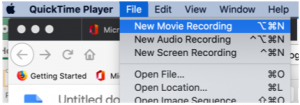
- A video screen will open and you will see yourself and the recording control panel below

- Press the red circle to begin recording. The red circle will turn into a black square, you will see the time start to increment on the left side,and the file size increment on the right side. The bar in the middle will move, showing that the microphone is working. Once you are done with your recording click the black square to stop recording.

- Once the video has stopped you will see a familiar looking control bar that will allow you to play back the video.

Step 2: Save and Export the Video
- Go to “File” then “Export As” and “720p…”
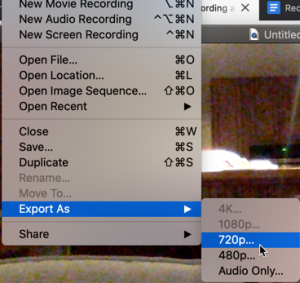
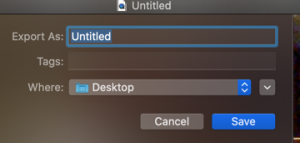
- You will have a chance to give your video a name and choose where you want to save the file,, then click the “Save” button
Step 3: Uploading to Kaltura Mediaspace
- Go to http://mediaspace.msu.edu/ and click on “Add New” in the upper right, then choose “Media Upload” from the drop down menu.
- If you are not logged in you will be taken to the login page where you’ll need to use your MSU NetId and password to log in. If you are logged in already it will take you to step 3 automatically.
- Click the ‘+ Choose a file to upload’ button to search your computer for the media file that you would like to upload; select the file; and click the ‘Open’ button to begin uploading the file.
- As the file uploads you may begin adding the details to the file. The details include:
- Name: this is the only required field. It will be prominently displayed above the media.
- Description: this is displayed below your media and allows you to write additional supplementary information.
- Tags: these are used when searching for your media within MediaSpace. See Tagging Tips and Uses for more information.
- Scheduling: this is when viewers will be able to access your media item.
- When you are finished editing the details, click ‘Save.’ You may continue uploading more files by clicking the ‘+ Choose another file’ button and repeating steps 2–3 above.
- Please note that at this point you may not be able to view your media and you may see the message: ‘This media is still being converted. An e-mail notification will be sent.’ This is completely normal. Your media will continue to process even if you navigate away from MediaSpace and you will receive an email notification once processing is complete.